
1. Download Zonely
Log in to your account on our website and navigate to My Account > My Products. Click the Download button to download the file to your local system.(1).png?fit=max&auto=format&n=X2ISxdGjFwrTSWOa&q=85&s=7157fbd175ada04f0710e4c3b525350c)
2. Upload Zonely to Your cPanel Server
To upload the.ZIP file, go to cPanel > File Manager > httpdocs and upload the file to this directory.
.png?fit=max&auto=format&n=X2ISxdGjFwrTSWOa&q=85&s=66cb5f614f2e6042a13c55bb57ae6fca)
.png?fit=max&auto=format&n=X2ISxdGjFwrTSWOa&q=85&s=641ec56ee7557164177bea87fe338347)
3. Create a Database
You need a database to store the website data. In your cPanel dashboard, locate MySQL® Database Wizard under the domain information section..png?fit=max&auto=format&n=X2ISxdGjFwrTSWOa&q=85&s=ab54fefc8278c1cf3f61f5a6321931de)
.png?fit=max&auto=format&n=X2ISxdGjFwrTSWOa&q=85&s=ec238fbb508d64b6b7b9dce741703305)
.png?fit=max&auto=format&n=X2ISxdGjFwrTSWOa&q=85&s=ebc817a2d75e6f2a488873c020f70ef7)
4. Visit Your Website
When you visit your website, you’ll be automatically redirected to the Zonely setup screen. Follow the on-screen instructions to complete the installation. If the site doesn’t open, click here to review your DNS settings. Enter your company details.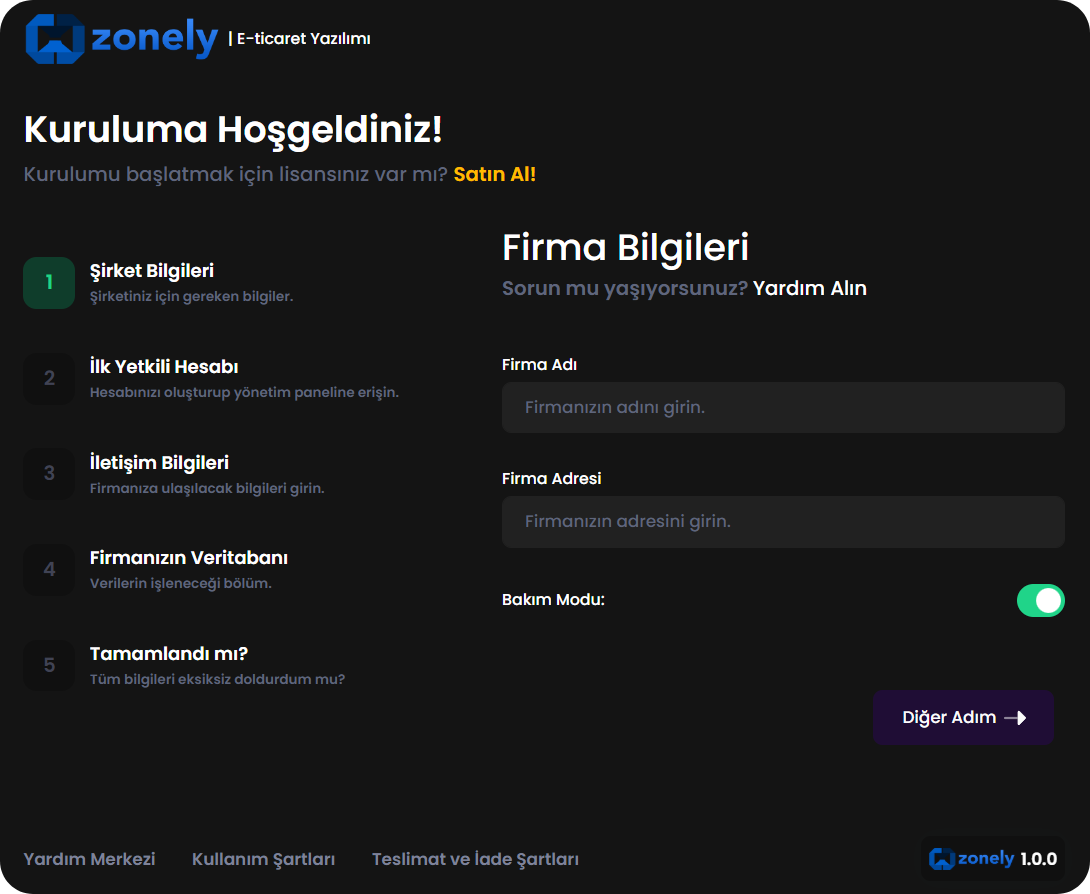
5. Create an Admin Account
After entering your team details, create an administrator account to start managing your website. If you selected “Username and Password” as the login method, use these credentials to access the panel..png?fit=max&auto=format&n=X2ISxdGjFwrTSWOa&q=85&s=ceb9f19c6104ec49f50f65ba2441ac93)
6. Enter Your Company Contact Information
Enter the contact details where your customers can reach you. You can leave these fields blank if you prefer..png?fit=max&auto=format&n=X2ISxdGjFwrTSWOa&q=85&s=d8da72a54465c743ea4e00f991e9dfce)
7. Enter the Database Information You Created in cPanel
To ensure Zonely runs smoothly, enter your database connection details:- Host: Usually
localhost. Enter the IP address if using an external database. - Port: Default is
3306. If custom, enter your database server port. - Database: The name of the database you created (e.g.,
zonely_db). - Username: Your database username.
- Password: The password for your database user.
If you get an error when testing the database connection, check user permissions and port configurations.
.png?fit=max&auto=format&n=X2ISxdGjFwrTSWOa&q=85&s=f739dcec31e2e1f3e94ddb6d763dd64c)
8. Start the Installation
Click Complete Installation to let Zonely automatically configure the required files and data on your server..png?fit=max&auto=format&n=X2ISxdGjFwrTSWOa&q=85&s=691e6567a2e6b08c49be36990acef53f)